Dashboard/Headsets/Headset Guides/PICO G3 Guides/PICO G3 Headset Guide
PICO G3 Headset Guide
Work through the sections in order the first time. After that, use the buttons below to jump straight to what you need.
Headset Overview
The PICO G3 is a standalone headset. It needs no phone, no computer and no cable during a session.
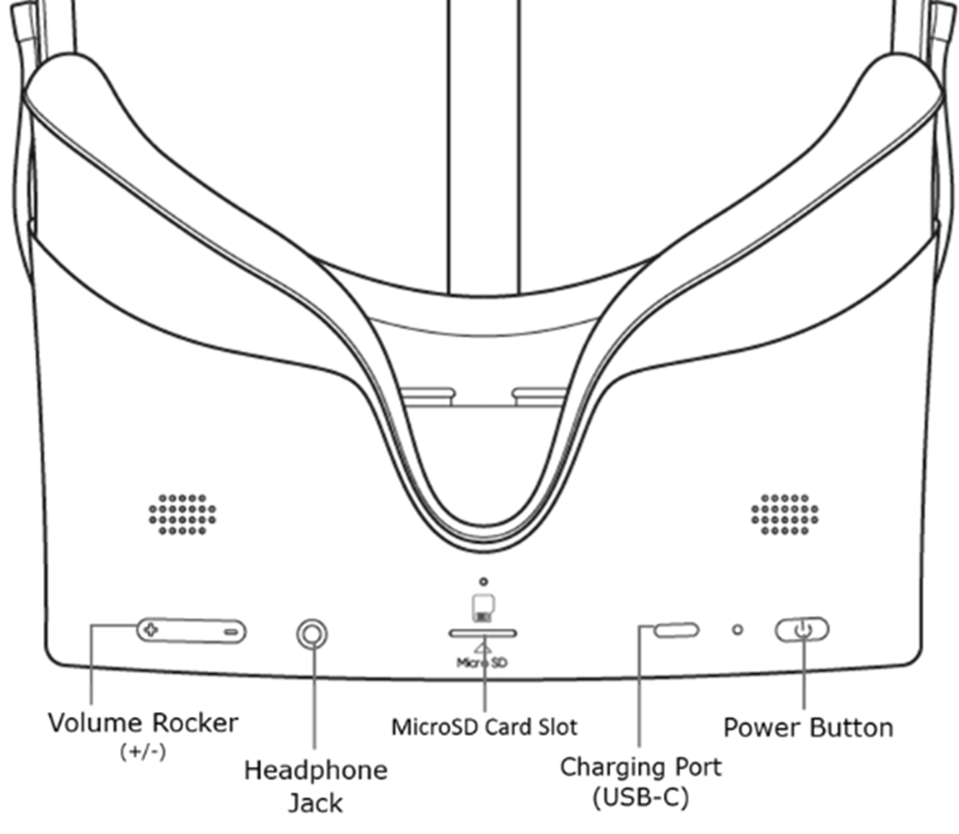
Headset, front and side. Select to enlarge.
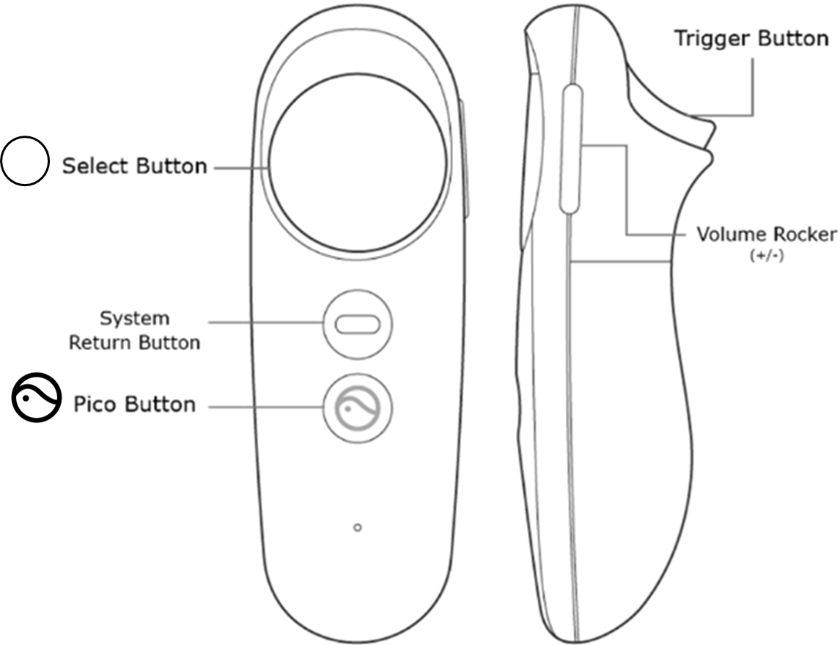
Controller buttons. Select to enlarge.
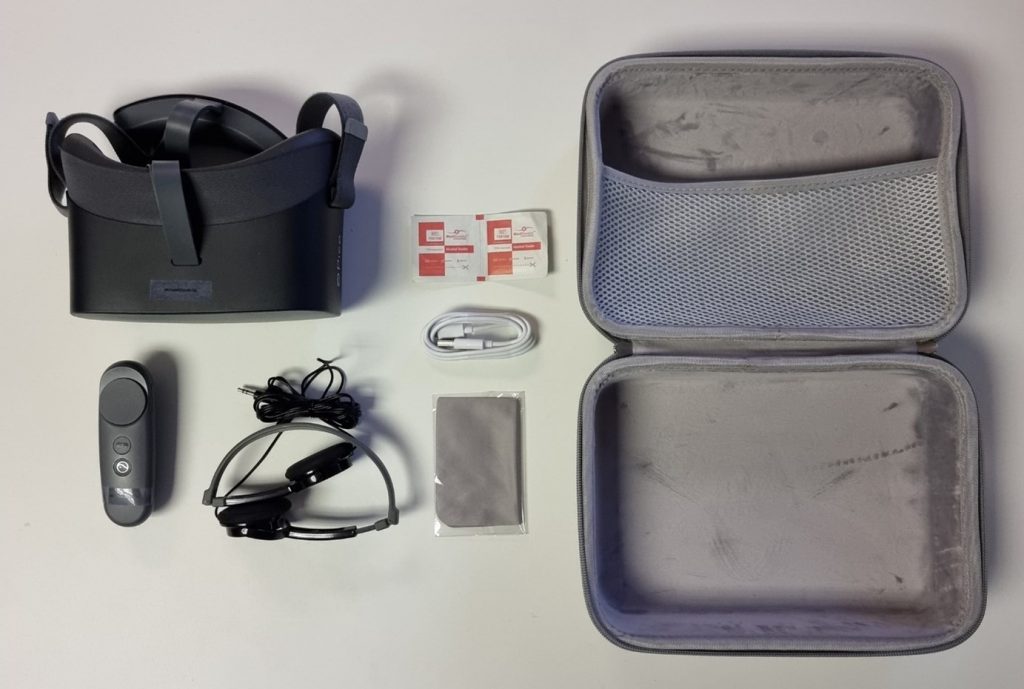
Case contents. Select to enlarge.
Headset & Controller
The power button is on the top right edge. Hold it for three seconds to wake, and five to power down. The volume rocker sits behind it.
- Adjust the top strap first, then the rear dial.
- The controller pairs automatically. The trigger selects; the round button returns to the platform home.
- Wipe the facial interface between users with an alcohol-free wipe.
Headset Case Content
- PICO G3 headset
- One controller and two AAA batteries
- USB-C charger and cable
- Two washable facial interfaces
- Lens cloth and the printed quick-start card
If anything is missing from a new case, email support@cornerstonevr.co.uk before the delivery day.
Getting Started
Power on, connect to your setting’s wi-fi, then sign in to the VR platform with your portal account. Multi-factor authentication runs once per device.
- Set the boundary to a seated area. Sessions are designed to be watched sitting down.
- Check the battery reads above 60% before a lesson.
Updates
Updates install over wi-fi and take up to fifteen minutes. Run them the day before delivery, not on the morning of a session.
Current firmware and what changed is listed in the release notes.
Downloading Films
Open the library on the headset, select a film and choose download. A 12-minute film is roughly 1.4 GB and takes about four minutes on a school connection.
- Download every film you plan to use before the session.
- Downloads resume automatically if the connection drops.
Online vs Offline
Downloaded films play offline with no connection at all. Streaming works but depends on your wi-fi holding through the whole session, so we recommend downloading.
The headset needs a connection once every 30 days to confirm your licence.
Pico G2 4K Documents (Old Portal)
VR Platform
The platform is the menu you see inside the headset. It lists your organisation’s films, downloads and playback history.
Signing In on a Shared Headset
Shared headsets stay signed in to the organisation account. Individual sign-in is only needed for practitioner-only content.
What Pupils Can See
Pupil-facing headsets show only the films assigned to that year group. Assignment is managed by your portal administrator.
Playback Controls During a Session
The trigger pauses. Holding the home button exits to the platform immediately, which is the fastest way to stop a session if a pupil becomes distressed.