Dashboard/Headsets/Headset Guides/PICO G3 Guides/PICO G3 Troubleshooting
PICO G3 – Troubleshooting Guide
This page provides assistance in relation to troubleshooting. If you require further assistance, please contact support@cornerstonevr.co.uk
Headset
Why is the headset battery running out faster than usual?
The headset was most likely left in Standby Mode. In this mode, the headset may appear to be turned off, but it is actually asleep. While in Standby Mode, the battery will continue to drain.
To prevent this, make sure the headset is fully powered off after each use.
To power the headset off, press and hold the power button for a few seconds until it shuts down. To confirm it is fully off, place the headset up to your eyes. If the display remains blank, the headset is powered off. If a picture appears, the headset was still in Standby Mode.
You can also power the headset off by double-pressing the Pico button and selecting the circle icon on the right, then choosing the option to turn the headset off.
What is "Eye Protection Mode" and how can I use it?
The Pico headsets have an eye protection mode that can help reduce eye strain. Here’s how you can turn it on:
- Power on the Headset: Make sure the headset is switched on.
- Access the Settings Menu: Double click the “Pico” button to bring up the settings.
- Navigate to Display Settings: Once inside the settings menu, look for “Display”.
- Enable Blue Light Filter/Eye Protection Mode: Within the display settings toggle Eye Protection Mode on to activate.
- Adjust the Filter Intensity (if available): Some headsets allow you to adjust the intensity of the filter. Choose the level that feels most comfortable.
- Exit the Settings: Once enabled, exit the settings menu and continue using your headset.
If you don’t see these options in your settings, ensure your headset is updated to the latest firmware/PUI version.
Why is my headset saying “oops, you have no internet connection”?
If you are planning on using Offline Mode then all you need to do is click ‘OK’, underneath, and the box will disappear. Then click on Offline Mode and login as normal.
If you are planning on using Online Mode, you need to ensure you are connected to the internet.
Why is the screen going black when I try to play a video?
This is usually caused by a slow internet connection, causing the video to buffer slowly. There are two options; either wait for the video to load or you can download the film in Online Mode.
Why is the screen jittery?
Sometimes you may find the screen in the headset is jittery, pixelating and disorientating when you turn it on. This often means the headset is low on battery. Charge the headset for at least an hour before use (and preferably for 3-4 hours) to ensure it has enough battery to last for the training/session/meeting you’re attending.
Headset is stuck on "Checking for Updates"
While the headset is turned on, double press the Pico button. You should see the Pico Settings menu appear.
At the top are 4 circles with icons. Click on the WiFi icon.
The top option on the following page will be Network (possibly might say WLAN).
There is a toggle at the top of the page. Select that to turn off the network.
Press the Pico button once.
Turn off the headset by holding the power button down.
Turn the headset back on and the app should boot up normally.
To put the network back on, just follow the steps above to toggle the network back on.
How do I know when my headset is fully charged?
The charging light will show certain colours depending on the different stages of charging: Blue – The headset is currently on and in use Red – The battery is critically low and needs to be charged Yellow/White – Shows when the headset is being charged Green – The headset is fully charged
Why aren’t all the videos showing up in Offline Mode?
If certain videos – or all videos – are not showing up, you may need to re-download them in Online Mode.
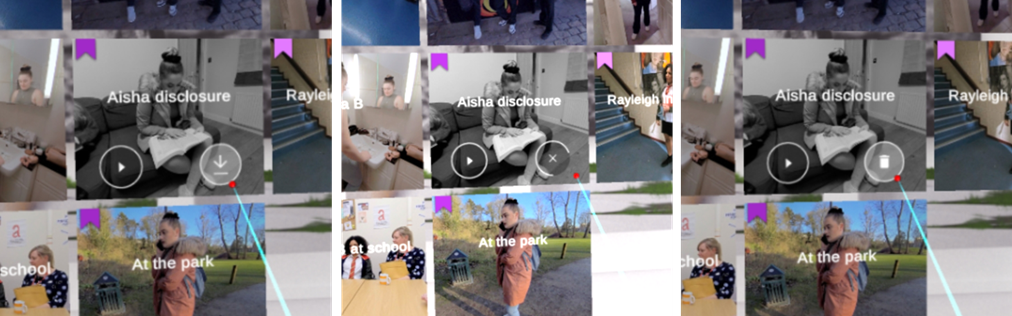
How do I re-download content?
All you need to do is connect your headset to Wi-Fi and log into Online Mode, where you will be able to re-download any missing content. Once you have logged into Online Mode, simply click the download icon in the corner of each thumbnail to download. Please see below image for reference:
After clicking ‘select all’ on the themes page, why isn’t the ‘confirm’ button coming up?
If this happens, unselect and then re-select each theme one-by-one. This should make the ‘confirm’ button appear. If you are still having no luck, please restart the headset and have another go.
How do I turn my headset off?
The easy way to turn the headset off is to double click th epico button to see the quick settings, and click on power off. Alternatively hold down the on/off button on the top/bottom of the headset.
Controller
Why is my controller not working/not connecting?
Press the Pico button and ensure the LED is flashing on the controller. If the LED is not flashing, then you will need to replace the batteries. To do so, slide off the back of the remote and replace the 2x AAA batteries.
If the LED on the controller is flashing, but the controller still won’t connect, double click the Pico button on the right-hand side of the headset. Look up and select the controller icon (using the select button on the right-hand side of the headset), which will take you to a screen where you can (re)pair the controller. Hold down the Pico button on the handheld controller and follow the on-screen prompts. The controller should now be connected.
Why is the screen/controller pointer misaligned?
If either the headset or controller are misaligned, you need to recalibrate. Look straight ahead, point your controller forwards (holding it in a comfortable position) and hold down the Pico button for 3-5 seconds, to recalibrate the screen/controller pointer. You can do this at any time, even when watching a video.
Can’t Find What You’re Looking For?
Contact support@cornerstonevr.co.uk for further help and advice. If you’d like to suggest future additions to our portal please click here.